Help Center

Build from your phone with a desktop Claude Code server.

This guide covers the product as implemented in the codebase: setup, server pairing, project discovery, sessions, tool permissions, voice input, usage analytics, relay networking, and developer-facing APIs.

iOS and Web Client

Use the mobile-first client to pair a desktop server, browse projects, start or resume Claude Code sessions, review tool requests, and send text or voice prompts.

Desktop Server

Run the local server that exposes project, file-system, session, WebSocket, setup-token, and usage APIs to trusted clients.

Relay Server

Optional self-hosted forwarding path for networks where direct LAN pairing is unavailable. The desktop and phone connect outward into the same relay room.

Claude Code Bridge

Sessions are backed by the local Claude Code executable when it exists on PATH, with a bundled SDK fallback available in the CLI server path.

iOS App Manual

A complete iPhone walkthrough for first-time users

This guide follows the real iOS app screens and button labels: start Viber Desktop Server on your computer, then follow the iPhone steps to pair, open a project, chat, and review tool requests. Addresses, PINs, paths, and device identifiers are shown as placeholders.

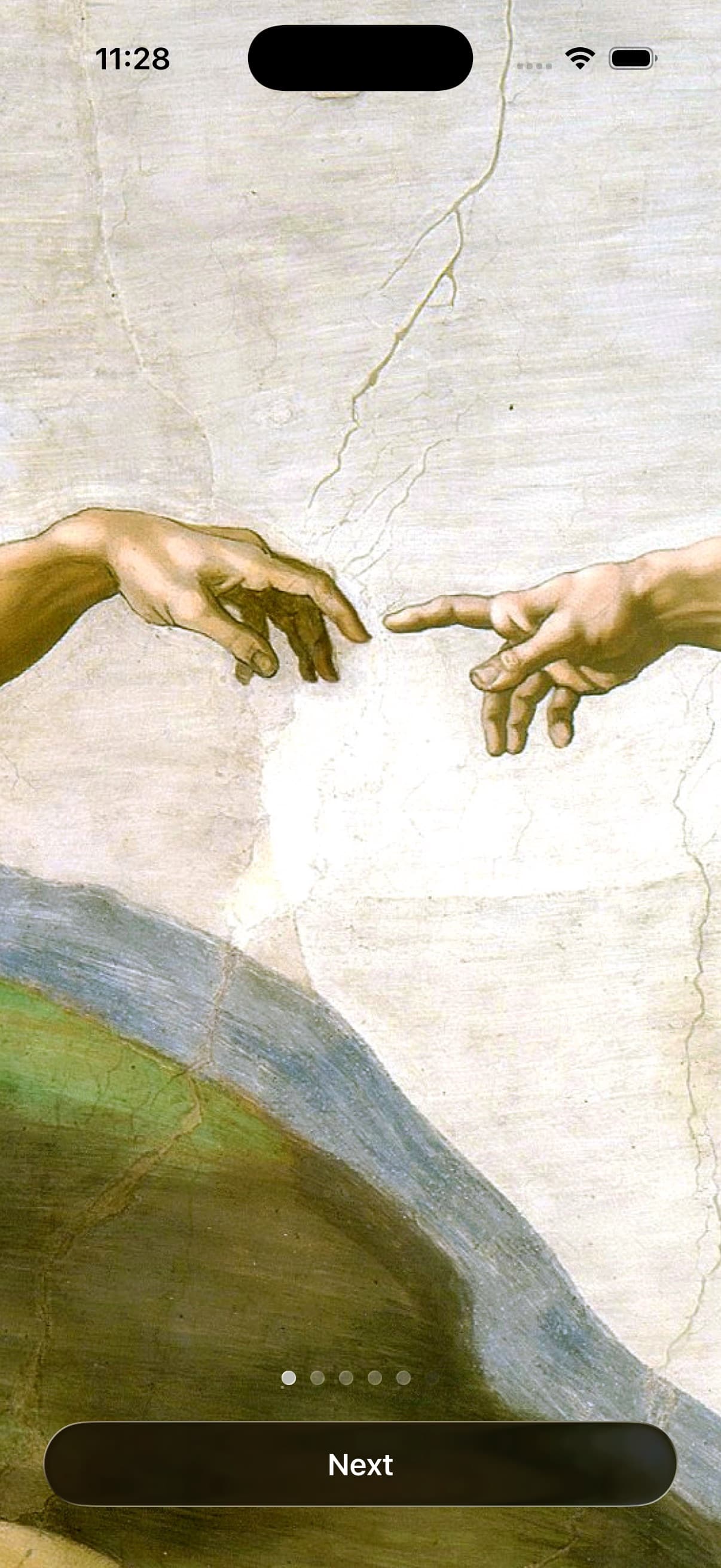
Viber Today iOS app first launch onboarding screen

First launch: finish onboarding

This is the native iOS app running in a Release simulator build. On first launch, tap Next through onboarding, then continue to Home.

Documentation screenshots use a clean simulator state. Real device names, server addresses, QR codes, PINs, tokens, project paths, and session content must never appear in public screenshots.

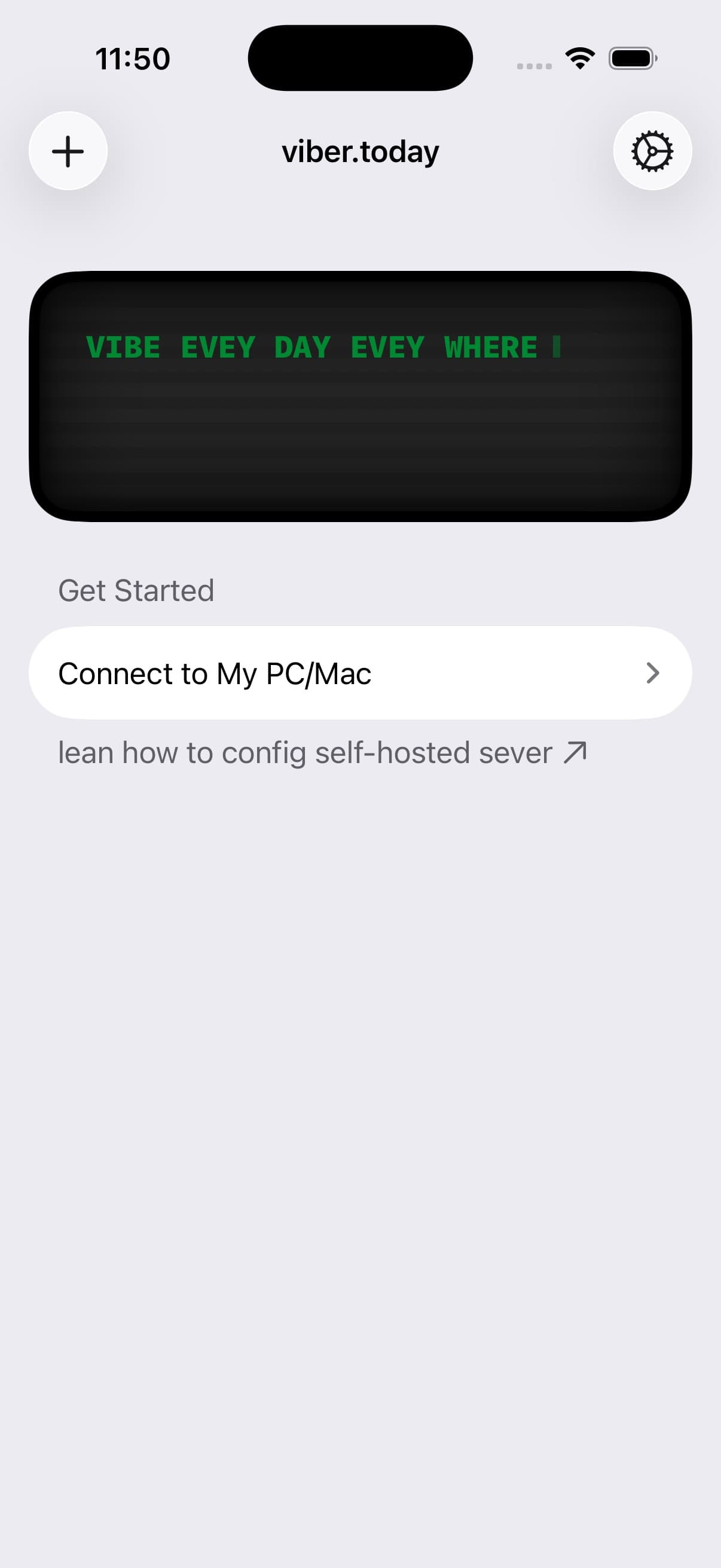
Viber Today iOS empty home screen with Connect to My PC or Mac button

Empty Home: connect your computer

After onboarding, Home shows Get Started when no server is paired. Tap Connect to My PC/Mac, or use the + button, to add a server.

Documentation screenshots use a clean simulator state. Real device names, server addresses, QR codes, PINs, tokens, project paths, and session content must never appear in public screenshots.

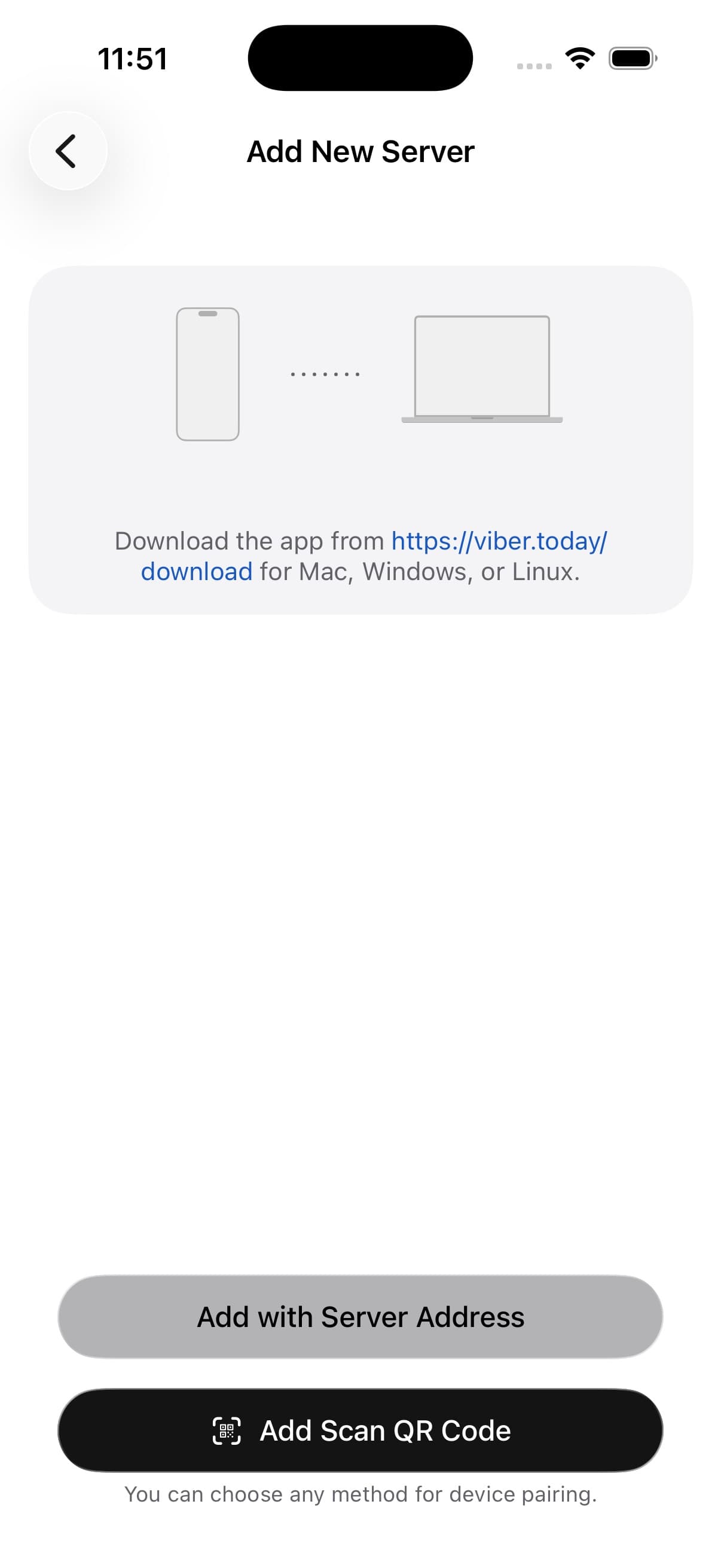
Viber Today iOS Add New Server screen with address and QR options

Add New Server: choose address or QR

Add New Server has two main actions: Add with Server Address for manual entry, and Add Scan QR Code for desktop QR pairing.

Documentation screenshots use a clean simulator state. Real device names, server addresses, QR codes, PINs, tokens, project paths, and session content must never appear in public screenshots.

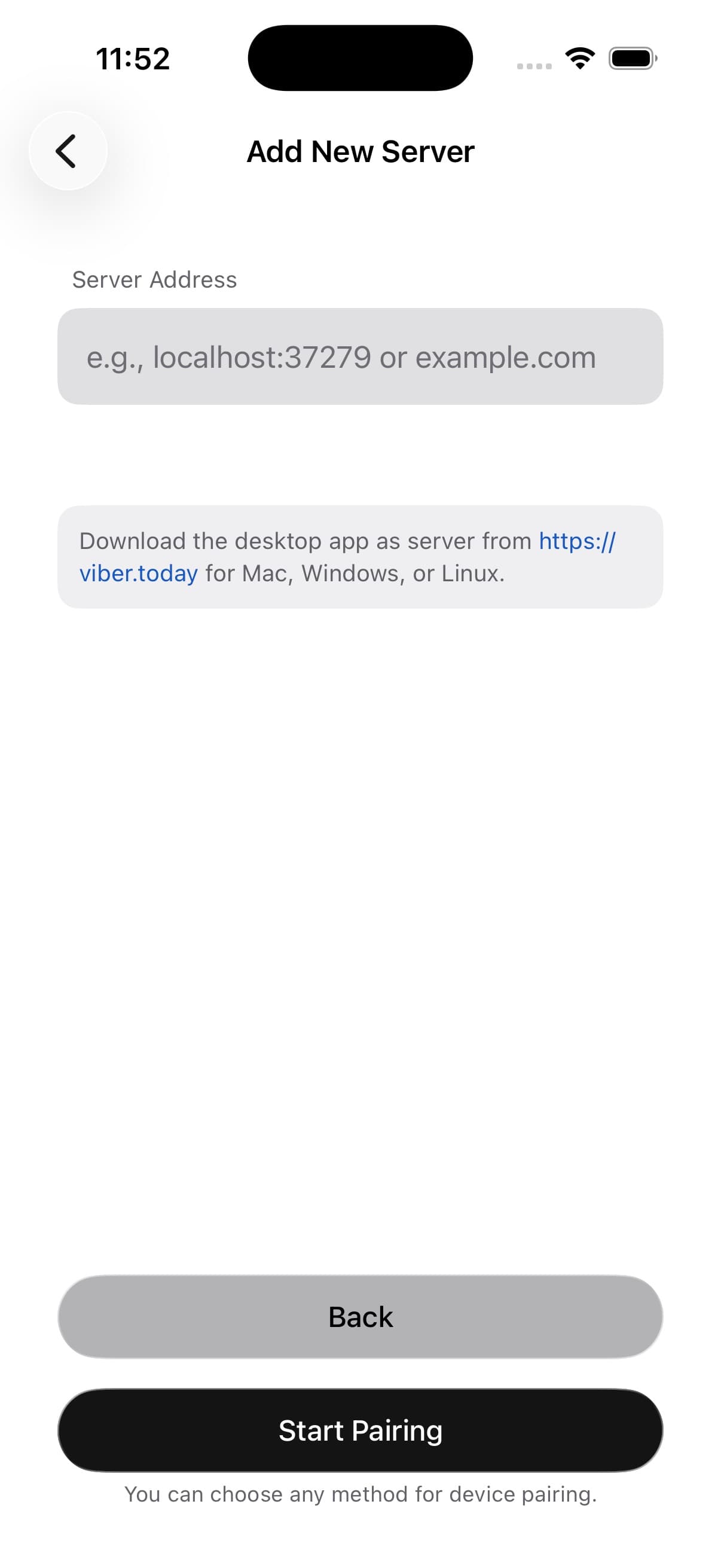
Viber Today iOS manual server address pairing screen

Manual pairing: enter the server address

After choosing Add with Server Address, enter the address shown by the desktop app and tap Start Pairing. The screenshot contains placeholders only.

Documentation screenshots use a clean simulator state. Real device names, server addresses, QR codes, PINs, tokens, project paths, and session content must never appear in public screenshots.

1. Open the iOS app for the first time

New users start in onboarding. This step only completes the introduction; it does not connect your computer yet.

  1. 1Open the Viber Today iOS app.
  2. 2Swipe left on the welcome page, or tap the Next button at the bottom.
  3. 3When the desktop download page appears, tap Next again.
  4. 4On the final onboarding page, tap Get Started.
  5. 5If a subscription or paywall screen appears, close it to return to Home.
  6. 6On Home, the title reads viber.today. If no server is connected, the app shows the first connection entry point.
Notes
  • The dots near the bottom show onboarding progress.
  • Use Back to return to the previous onboarding page.
  • This step only finishes the first-run guide; pairing happens later.
2. Connect your iPhone to a Mac or PC

The iOS server entry point is on Home. You can scan the desktop QR code or type the server address manually.

  1. 1Open Viber Desktop Server on your computer.
  2. 2On the desktop Connect page, make sure the QR code, server address, and pairing PIN are visible.
  3. 3Return to the iPhone Home screen and tap the + button in the top-left corner.
  4. 4On Add New Server, review the pairing instructions.
  5. 5To scan, tap Add Scan QR Code and point the camera at the desktop QR code.
  6. 6To type the address, tap Add with Server Address.
  7. 7In Server Address, enter the address shown by the desktop app, such as http://<desktop-ip>:3000.
  8. 8Tap Start Pairing. The app asks the desktop server to begin pairing.
  9. 9When the PIN Code screen appears, enter the 4-digit PIN shown on the desktop.
  10. 10Tap Complete Pairing. On success, the sheet closes and the server appears on Home.
Notes
  • Use a LAN address when the iPhone and computer are on the same Wi-Fi.
  • If they are on different networks, use the desktop Relay mode QR code.
  • Public relay URLs must use HTTPS/WSS because iOS enforces secure transport.
  • QR codes, PINs, tokens, and IP addresses are sensitive. Redact them before sharing screenshots.

3. Open a project folder from iPhone

After pairing, Home groups projects by server. Open an existing project or add a new folder from the desktop file system.

  1. 1Find the server card on Home and confirm it is not Offline.
  2. 2If projects are already listed, tap a project row to open its chat view.
  3. 3If there are no projects yet, tap Add Folder in the server section.
  4. 4In the folder picker, tap folder rows to move into subdirectories.
  5. 5Use the breadcrumb at the top to go back, or use search to filter by folder name.
  6. 6Select the correct project root and tap Open.
  7. 7The app creates or resumes the Claude Code session for that folder.
Notes
  • A project root often contains package.json, README, or .git.
  • Do not select your entire home directory; the context will be too broad.
  • If the folder list is empty, check that the desktop server can read that directory.

4. Chat with Claude Code on iPhone

The chat page shows the project, connection status, session switcher, and permission mode at the top. The composer is at the bottom.

  1. 1After opening a project, check the small status dot near the project name.
  2. 2Green means connected, yellow means connecting, and red means disconnected.
  3. 3Type your request in the Message Claude field at the bottom.
  4. 4Tap the send button on the right side of the composer.
  5. 5To switch sessions, tap the session list button at the top and choose another session for the same project.
  6. 6To use voice input, tap the microphone button beside the composer and grant microphone access.
  7. 7To review voice text before sending, enable Confirm Before Send in Settings.
Notes
  • On iOS, use the visible send button instead of relying on Enter.
  • During long tasks, project rows on Home may show a Generating state.
  • If the connection drops, return to Home, pull to refresh, and confirm the desktop server is still running.

5. Review Claude tool permission requests

When Claude needs to read files, edit files, or run commands, the iOS app shows a permission request in chat.

  1. 1Read the tool name first, such as read, write, edit, bash, grep, or glob.
  2. 2If the request matches the task, tap Allow.
  3. 3If you are unsure, tap Reject. Claude receives the rejection and can adjust.
  4. 4To reuse the same decision later, enable Remember my choice.
  5. 5The top permission mode defaults to Ask.
  6. 6To automatically allow file edits, open the permission menu, choose Auto Edit, and confirm.
  7. 7Use Auto All only when you fully trust the task; it allows every tool automatically.
Notes
  • Do not enable Auto All in an unfamiliar repository.
  • Be especially careful with shell commands, file writes, deletes, and network requests.
  • When sharing tool request screenshots, redact paths, tokens, private filenames, and command arguments.

iOS Button Reference

Use this when you cannot find the next control. Button names match the iOS labels and icons.

Onboarding
Next
Bottom-right
Move to the next onboarding page.
Onboarding
Back
Bottom-left
Return to the previous onboarding page.
Onboarding
Get Started
Bottom-right on the final page
Complete onboarding and continue to the app.
Home
+
Top-left
Open Add New Server to connect a Mac or PC.
Home
gear
Top-right
Open Settings for theme, font, servers, voice, and preferences.
Home
Add Folder
Bottom of a server project list
Open the folder picker and choose a new project root.
Add New Server
Connect to My PC/Mac
Get Started area on the empty Home screen
Start the server connection flow.
Add New Server
Manual address
Address option on Add New Server
Switch to manual server address entry.
Add New Server
QR scan
QR option on Add New Server
Open the camera to scan the desktop QR code.
PIN Code
Complete pairing
Bottom of the PIN entry page
Complete pairing with the 4-digit desktop PIN.
Folder Picker
Open
Bottom bar after selecting a path
Create or resume a Claude Code session for the selected folder.
Chat
Send
Right side of the composer
Send the current message to Claude.
Chat
microphone
Left side of the composer
Start voice input.
Chat
Ask / Auto Edit / Auto All
Permission menu near the top
Change the Claude tool permission mode.
Tool Request
Allow / Reject
Tool request card in chat
Allow or reject this Claude tool call.

Common First-Time Blocks

Check these first before reinstalling the app or resetting your setup.

The QR code will not scan

Confirm the desktop Connect page is showing a QR code. If the QR code uses a public relay, the relay URL must be HTTPS/WSS.

Manual address connection fails

Make sure the iPhone and computer are on the same Wi-Fi. The address must include protocol and port, for example http://<desktop-ip>:3000.

PIN entry fails

Check the latest PIN on the desktop app and enter that value on iPhone. Do not reuse an old PIN from a screenshot.

Home shows Offline

Start the desktop server, then return to iPhone Home and pull to refresh. If the network changed, remove the old server and pair again.

The right folder is unclear

Choose the specific project directory, not your entire user directory. Prefer a folder with README, package.json, or .git.

A Claude permission request is unclear

If you do not understand the request, tap Reject. Tap Allow only when the file access, edit, or command matches the task.

Quick start

First working session

01

Install and start the desktop server

Download the server for macOS, Windows, or Linux. Keep it running while you use the iOS or web client.

02

Finish Claude Code authentication

Run Claude Code locally first if your setup needs sign-in. The server launches Claude Code sessions from your desktop environment.

03

Pair a client

Add the server address shown by the desktop app, test the connection, then enter the 4-digit PIN displayed by the server.

04

Open a project folder

Choose an existing project or browse the server file system, then create a new session or resume the latest one.

Visual walkthrough

What the desktop pairing screens look like

These are not iPhone screens. They are the Viber Desktop Server screens you reference while pairing an iPhone. The screenshots are captured from the production Electron renderer, with QR codes, addresses, device names, and local paths redacted.

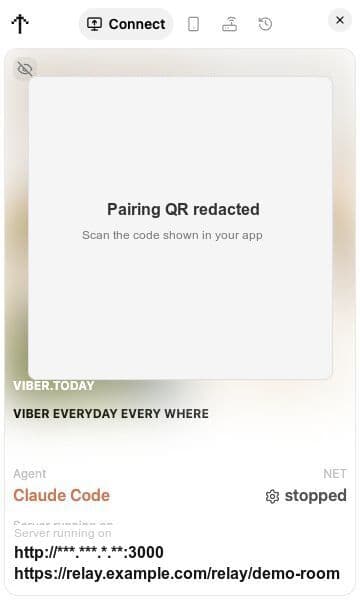
Viber Desktop Connect screen showing QR pairing and server addresses

Pair from the desktop server

The Connect tab displays the QR payload, direct server addresses, the current agent, and whether NET or Relay is active.

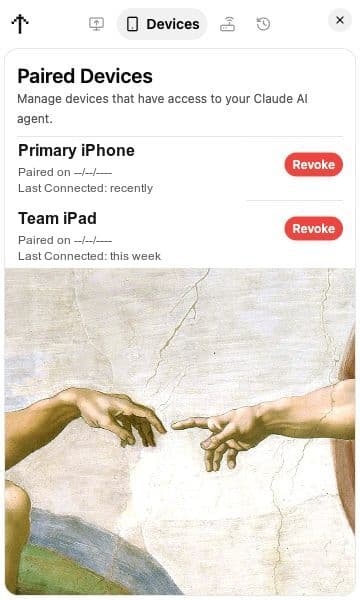
Viber Desktop paired devices screen

Review trusted devices

The Devices tab lists iPhones and iPads that can reach the local Claude Code server, including last connection time and revoke controls.

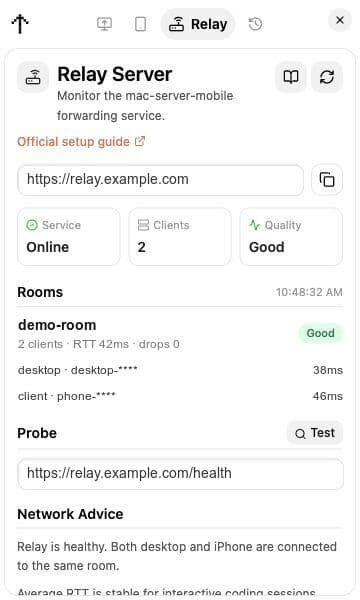
Viber Desktop Relay Server screen showing online relay health

Monitor relay health

The Relay tab checks service health, connected clients, room quality, RTT, drops, and network recommendations.

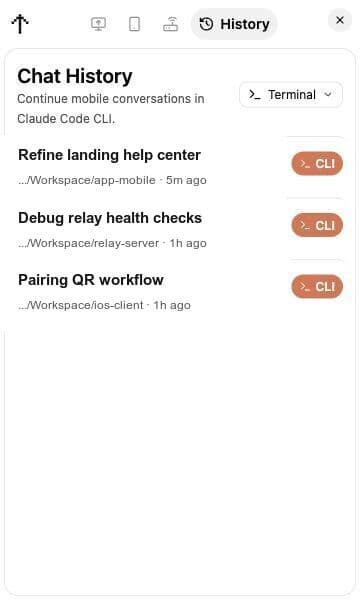
Viber Desktop chat history screen with terminal handoff

Continue sessions in the CLI

The History tab shows recent mobile sessions and can hand a conversation back to a local terminal running Claude Code.

Connect and Manage Servers

A server is the trusted desktop machine that owns your code, Claude Code process, session storage, and usage history.

  • Add a server with an HTTP address such as http://<desktop-ip>:3000.
  • Test connectivity before pairing so network and firewall issues are caught early.
  • Enter the 4-digit PIN from the desktop app to save the server locally.
  • Keep multiple servers, switch the active one from the sidebar, and remove old servers in Settings.
  • Server status can be online, connecting, or offline; refresh if the desktop app was restarted.

Find and Open Projects

The home view reads projects from the active server and keeps recent work easy to resume.

  • Search by project name or full path with a short debounce to keep large lists responsive.
  • Pinned projects appear first, then recent projects are sorted by access time.
  • Git branch or remote information appears when the server detects it.
  • Projects with an active Claude generation show a Generating indicator.
  • Use Add Folder to browse server directories and choose a new working folder.

Run Claude Code Sessions

Each session belongs to a project folder and can be created, resumed, or switched from the chat interface.

  • Opening a project resumes its latest session when one exists.
  • Starting from a selected folder creates a new session on the desktop server.
  • The chat connects over WebSocket and renders user, assistant, system, tool, image, markdown, code preview, and diff content.
  • The session dropdown lets you move between sessions for the same project.
  • If the WebSocket drops, the client shows connection status and retries with backoff.

Approve Tools and File Changes

Viber Today makes Claude Code tool use visible so you can decide how much autonomy each session gets.

  • Tool cards render bash, read, write, edit, grep, glob, and task activity.
  • When permission is required, approve or reject the request from the client.
  • Use Remember my choice to persist a tool preference in local storage.
  • Permission modes include Ask, Auto-Edit, and Auto-All.
  • Review generated diffs before accepting file-changing work in sensitive repositories.

Use Voice Input

Voice input is available through browser speech recognition where supported and is configurable in Settings.

  • Toggle between text and voice input from the composer.
  • Choose a speech language including English, Chinese, Japanese, Korean, Spanish, French, and German options.
  • Enable Confirm Before Send when you want to review transcripts before they become prompts.
  • Enable Text Optimization to improve punctuation, capitalization, grammar, and technical terms.
  • Customize the voice prompt template with {text} as the transcript placeholder.

Read Usage Analytics

The Usage page asks the active server for Claude Code daily usage and summarizes cost and token activity.

  • View total cost, input tokens, output tokens, and cache hit rate.
  • Inspect the last 10 days of daily usage with a compact cost bar chart.
  • Refresh usage manually after long-running sessions.
  • If usage is empty, confirm the desktop server can read Claude Code usage data on that machine.

Use Relay Networking

Relay mode is useful when your phone cannot reach the desktop server directly over the same local network.

  • Deploy a relay server yourself or use the Relay Skill page to give an agent the deployment instructions.
  • The desktop relay screen checks /health, /api/v1/network/status, and recommendations.
  • A relay room should show both desktop and client participants when forwarding is working.
  • Use network probe tools to measure reachability and latency from the relay server.
  • Prefer HTTPS for public relay URLs whenever the server is exposed outside a trusted network.
Troubleshooting

The client cannot connect to the desktop server.

  • Confirm the desktop server is running and the address includes the correct protocol, host, and port.
  • Open the server address in a browser and check that /api/ returns a JSON response.
  • Put the phone and desktop on the same Wi-Fi network, or switch to relay/ngrok if direct LAN access is blocked.
  • Check OS firewall prompts and allow inbound connections for the desktop server.

The PIN pairing step does not finish.

  • Generate or view the latest pairing code in the desktop app and enter exactly four digits.
  • Retry after refreshing the server status; old pairing codes may expire.
  • Remove the saved server and add it again if the address or device identity changed.

Projects or folders do not appear.

  • Verify the selected server is online and active in the sidebar.
  • Use Add Folder to browse from a known parent directory.
  • Check that the desktop process has permission to read the target path.
  • Refresh the Projects page after creating or moving folders.

A Claude session fails to start.

  • Run claude in the desktop terminal once to complete authentication.
  • Check that Claude Code is available on PATH, or configure the server with an explicit executable path.
  • Start a session from a folder that exists on the desktop server.
  • Restart the desktop server if a previous Claude process is stuck.

Voice input is missing or inaccurate.

  • Use a browser or WebView with speech recognition support.
  • Grant microphone permission when prompted.
  • Set the correct speech language in Settings.
  • Turn on Confirm Before Send for manual transcript review.

Relay mode is online but traffic is not flowing.

  • Confirm both desktop and client use the same relay URL and room.
  • Check the relay status page for two connected clients in the room.
  • Run the relay network probe against /health and the public URL.
  • Make sure reverse proxies preserve WebSocket upgrades.

Developer Reference

The desktop/agent server exposes REST and WebSocket surfaces used by the client. Auth and pairing middleware are applied by the CLI server wrapper.

GET /api/

Health-style API root with version metadata.

GET /api/projects

List known project folders, access times, git metadata, and latest session state.

GET /api/fs/ls?path=...

Browse directories on the server file system for folder selection.

GET /api/sessions

List stored Claude sessions, optionally filtered by cwd.

POST /api/sessions

Create a new Claude Code session for a working directory.

GET /api/usage/claude-code/daily

Return daily Claude Code usage used by the Usage Analytics page.

WebSocket /api/ws

Real-time chat transport used by the session interface.

FAQ
Does Viber Today upload my repository to a hosted service?+

The product is designed around a local desktop server. Your project files stay on the desktop machine, while clients request actions through the paired server. If you configure a relay, it forwards traffic between your devices but should still be treated as infrastructure you control or trust.

Can I use more than one computer?+

Yes. The client stores multiple server profiles locally, and you can switch the active server from the sidebar.

Do I need the relay server?+

No. Use direct LAN pairing when the phone can reach the desktop server. Use relay mode only when local networking, NAT, VPN, or firewall rules block direct access.

Where are preferences stored?+

The web client stores server profiles, theme, voice settings, prompt templates, and tool preferences in local storage. The desktop/agent side stores sessions and project metadata in its configured data directory.

Need direct support?

Include your desktop OS, app version, server address format, and the failing step when you report an issue.